本帖最后由 take1943 于 2025-12-27 16:57 编辑
全网最强HA定时任务管理,无需新增辅助元素、自动化,断电可存续执行
智能家居之定时,乃日用常需。然传统之法,操作繁复,界面难明,功能单一,移动不便,工具之妙,在于简朴。集中管理,方显智慧。
尤以设备管理为患:
- 灯、扇、空调、媒体,各立门户,操作不一
- 定时任务,散落四方,难以统辖
- 周期任务,配置繁琐,管理维艰
吾辈制此卡片,旨在化繁为简
- 翻页钟表,一目了然
- 设备分类,择之便捷
- 周期定时,省心省力
- 空调智能,冷暖自知
- 响应设计,大小皆宜
好了,闲言少续。开始正文
一、UI展示:
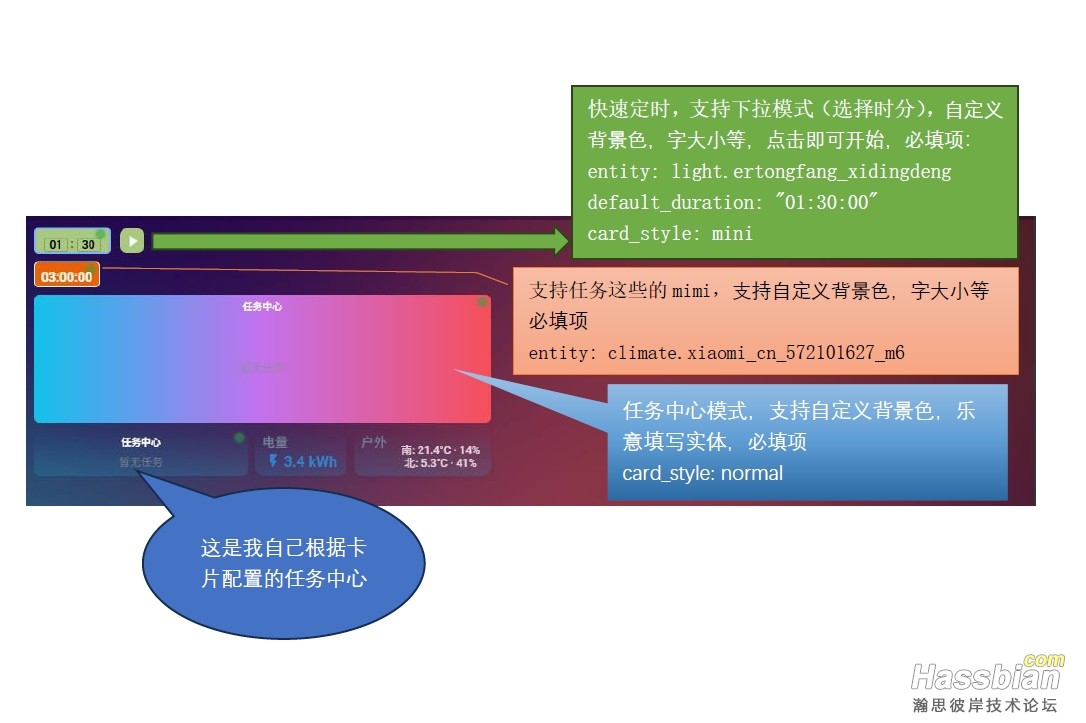
1、三种任务界面
3中UI界面
2、UI解释
任务中心
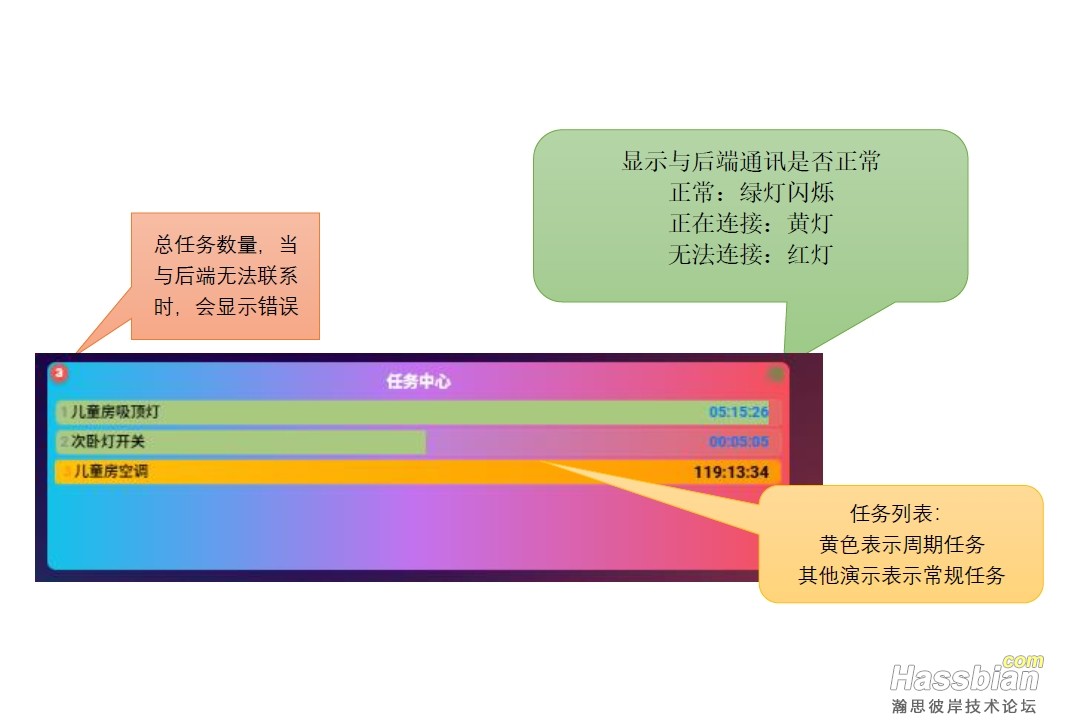
3、演示动画,由于附件限制,无法上传完整动画

二、安装
前端以 Web Components 为基,后端以 AppDaemon 为主,实时同步,持久存储,断电后任务保留,只要再最近一条任务开始前开机即可继续任务。
前端:js卡片timer-control-card.js
下载地址:https://github.com/chjspp520/timer-control-card ,后期会在GitHub中更新
- 实时同步机制,避免定时器状态丢失 前端:js卡片timer-control-card.js(下载地址:https://github.com/chjspp520/timer-control-card) 后端:AppDaemon 加载项(加载项商店安装),安装后修改时区,后再导入模块(模块见https://github.com/chjspp520/timer-control-card),重启AppDaemon 加载项,后再日中看见有INFO AppDaemon:Stopping apps: {'timer_backend'}字样表示启动成。
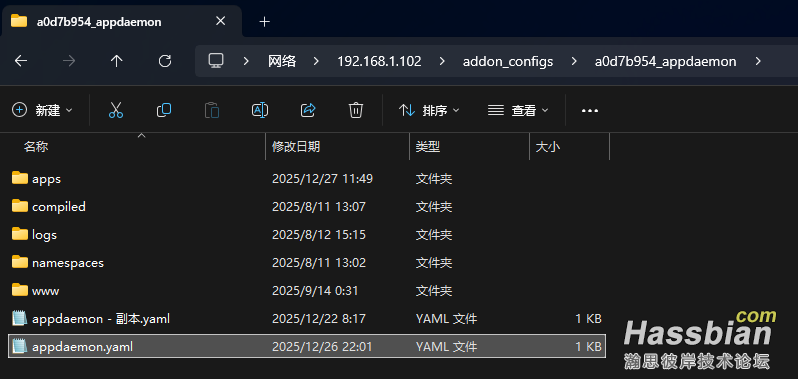
1、 后端配置: A)在加载项中安装AppDaemon,安装方法自行百度。 B)配置appdaemon.yaml,该文件在安装好AppDaemon后,会在你的home assistant的根目录创建,详细路径:\addon_configs\a0d7b954_appdaemon\appdaemon.yaml,在该文件中做如下修改,新增以下内容(a0d7b954_appdaemon中的前缀是自动的):
appdaemon: latitude: 34.26111 #位置坐标,随便写 longitude: 108.94222 #位置坐标,随便写 elevation: 400 #位置高度,随便写 time_zone:Asia/Shanghai #时区,按照此项填写 plugins: HASS: type: hass token: !env_varSUPERVISOR_TOKEN #单独安装填写长期TOKEN,加载项按照此方法 改完如下:
C)配置后端定时应用程序: 打开addon_configs\a0d7b954_appdaemon\apps\apps.yaml文件,新增如下内容: timer_backend: module: timer_backend class: TimerBackend event_name: "timer_backend_event" default_actions: light: turn_off: service: light.turn_off turn_on: service: light.turn_on switch: turn_off: service: switch.turn_off turn_on: service: switch.turn_on media_player: turn_off: service: media_player.turn_off pause: service: media_player.media_pause climate: turn_off: service: climate.turn_off set_temperature: service: climate.set_temperature set_mode: service: climate.set_hvac_mode
注意缩进:
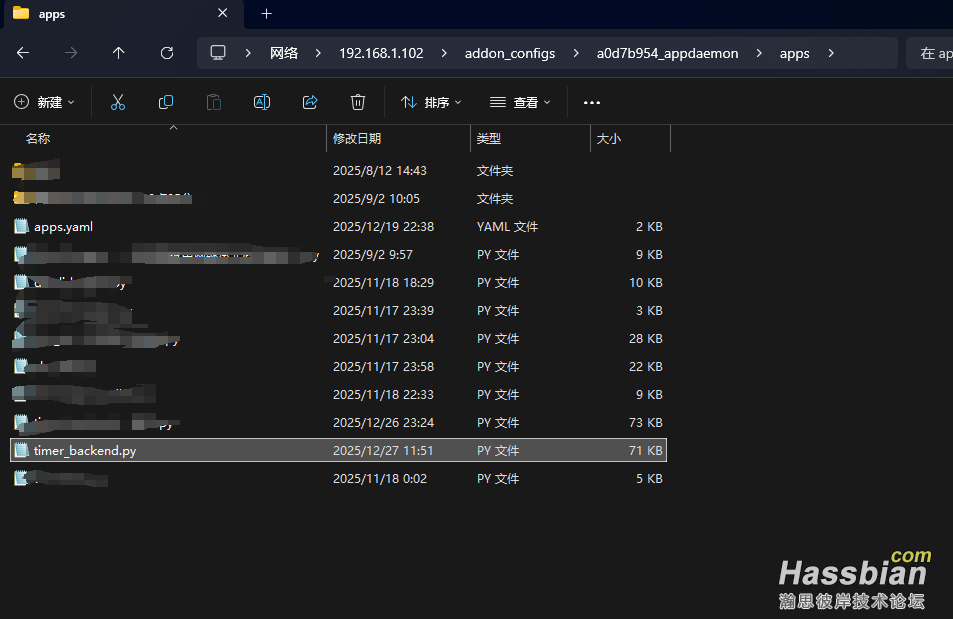
D)将将timer_backend.py放入addon_configs\a0d7b954_appdaemon\apps文件夹下,如图:
E)修改好后,重启AppDaemon。
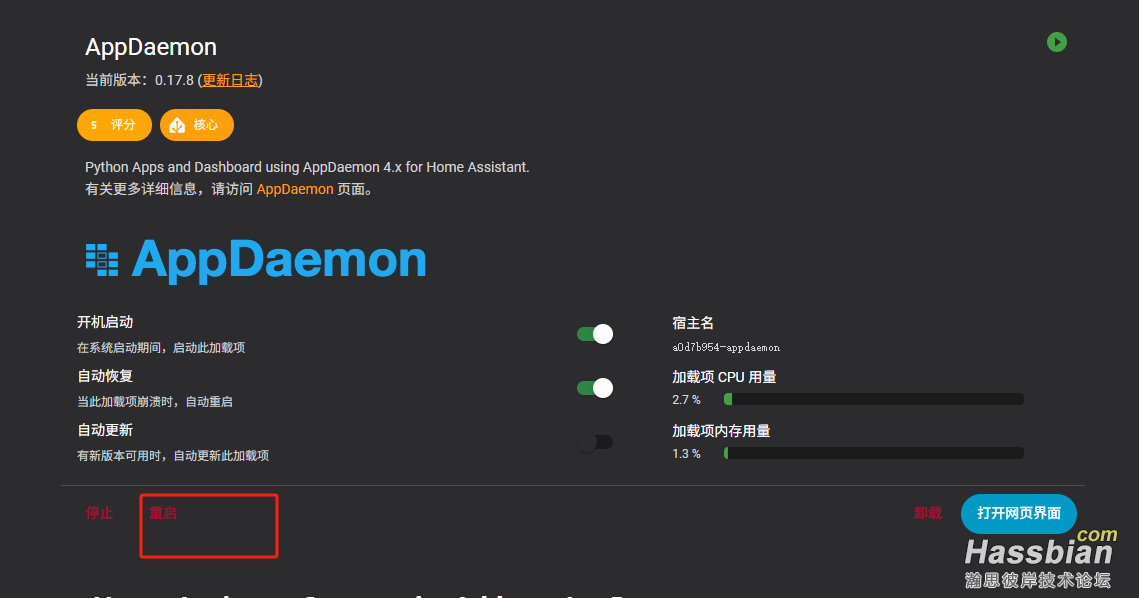
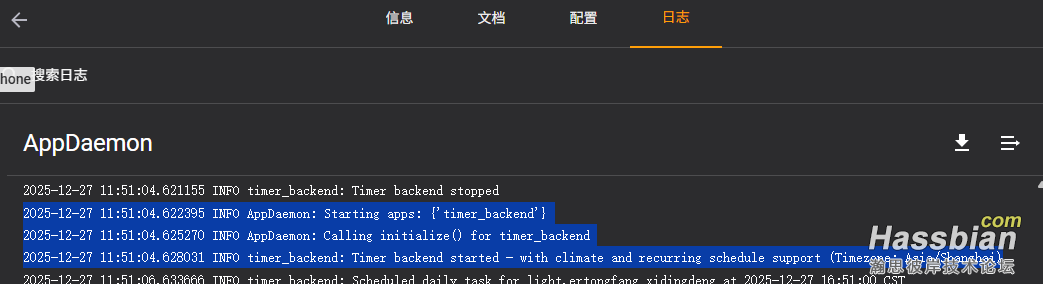
在日志中出现,以下内容表示后端运行正常 INFOAppDaemon: Starting apps: {'timer_backend'} INFOAppDaemon: Calling initialize() for timer_backend INFOtimer_backend: Timer backend started - with climate and recurring schedulesupport (Timezone: Asia/Shanghai)
2、前端卡片配置:
UI界面有三种,分别为: A) 可下拉快速开始倒计时定模式,如绿色UI,该模式主要是为嵌入到其他卡片中给设备快速定时准备,该模式下可以点击时弹出下拉选择,点击分弹出下拉选择,点击开始即可进入倒计时模式。此时卡片配置中必须含有以下配置,此模式无弹出窗口,无法管理任务。 entity:light.ertongfang_xidingdeng #被定时的实体 default_duration:"01:30:00" #默认倒计时长度,不写也可以在外部下拉选择时分 card_style: mini #必须为mimi
卡片模板: type: custom:timer-control-card entity: light.ertongfang_xidingdeng default_duration: "01:30:00" time_box_font_size: 12px time_box_width: 70px time_box_height: 15px time_box_background: "#a8c97f" time_box_progress_background: "#2792c3" status_indicator_color: "#28a745" status_indicator_width: 10px status_indicator_height: 10px start_btn_color: "#a8c97f" start_btn_width: 27px start_btn_height: 27px cancel_btn_color: "#dc3545" cancel_btn_width: 30px cancel_btn_height: 30px show_buttons: true timer_running_border_color: "#00a3af" timer_running_border_width: 1px card_style: mini second_style: pull-down timer_running_border: 2px solid#82b1ff
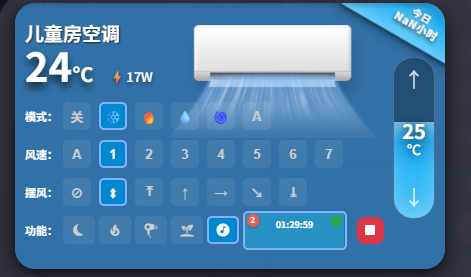
如下,给空调定时关机(以倒计时的模式显示):
B) 支持任务这些的mimi模式,如黄色UI,该模式下支持管理所有任务(新建、取消等等)但是该模式下仅仅显示给定设备的倒计时显示,可以快速开始,但不支持下拉选择时长,可以点击该卡片任何位置触发弹出窗口来执行操作(新建、取消、修改等),该模式下必须配置entity,否则无法知道是说明实体,所以就无法开始定时,也不会显示任务倒计时。
卡片模板: type: custom:timer-control-card entity: climate.xiaomi_cn_572101627_m6 default_duration: "03:00:00" time_box_font_size: 14px time_box_width: 80px time_box_height: 15px time_box_background: "#eb6101" time_box_progress_background: "#2792c3" status_indicator_color: "#28a745" status_indicator_width: 10px status_indicator_height: 10px start_btn_color: "#eb6101" start_btn_width: 25px start_btn_height: 25px cancel_btn_color: "#2792c3" cancel_btn_width: 30px cancel_btn_height: 30px show_buttons: true timer_running_border: 1px solid
卡片模板
type: custom:timer-control-card
entity: light.ertongfang_xidingdeng
default_duration: "00:00:00"
time_box_font_size: 12px
time_box_width: 120px
time_box_height: 15px
time_box_background: "#f0f8ff"
time_box_progress_background: "#a8c97f"
status_indicator_color: "#28a745"
status_indicator_width: 10px
status_indicator_height: 10px
start_btn_color: "#28a745"
start_btn_width: 40px
start_btn_height: 40px
cancel_btn_color: "#dc3545"
cancel_btn_width: 30px
cancel_btn_height: 30px
show_buttons: false
timer_running_border_color: "#00a3af"
timer_running_border_width: 1px
card_style: normal
normal_height: 130px
normal_background: >
background: #12c2e9; background: -webkit-linear-gradient(to right, rgb(18,
194, 233), rgb(196, 113, 237),rgb(246, 79, 89)); background:
linear-gradient(to right, rgb(18, 194, 233), rgb(196, 113, 237), rgb(246,
79,89));
| 


 发表于
发表于